Create a New System User
In the Accounts module, you can create system users to give your team access to the Xsponse platform based on specific roles and permissions. System users can include support staff, administrators, or other internal users who need access to manage accounts, devices, or settings. Creating a new user involves entering their basic details, assigning a role, and defining permissions according to their responsibilities.
To Create a New System User
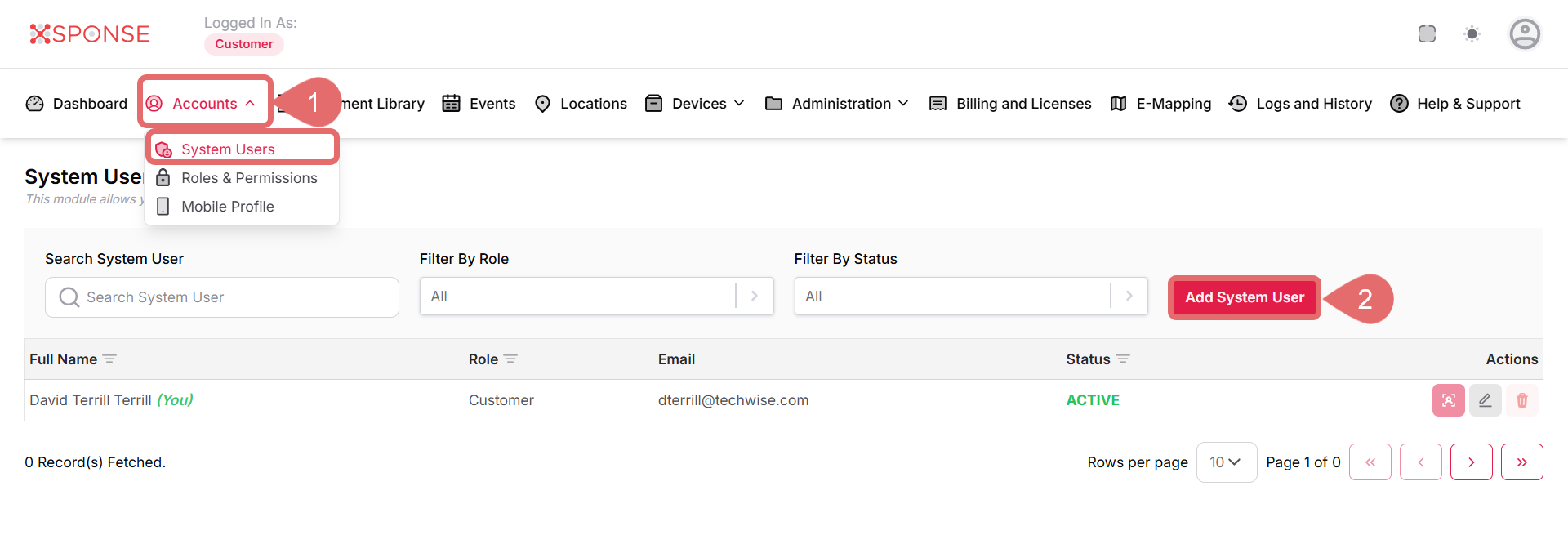
- Go to Accounts > System Users.
- Click Add System User.
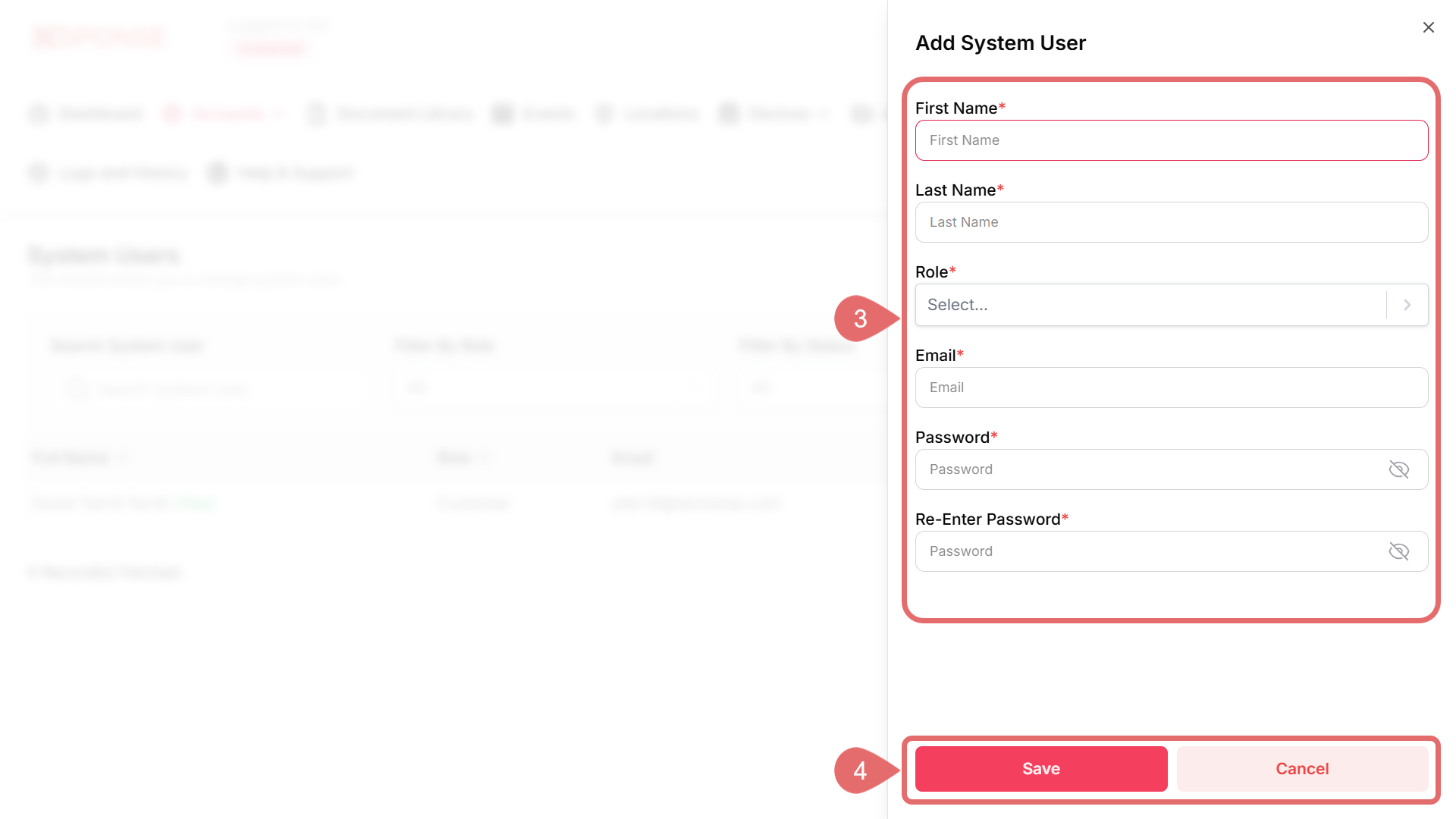
- Fill in the required information:
- First Name: Enter the user's first name. This field is required.
- Last Name: Enter the user's last name. This field is required.
- Role: Select the appropriate role from the dropdown list. This field is required.
- Email: Enter a valid email address for the user. This field is required.
- Password: Create a temporary password. The user will be prompted to change it after logging in.
- Re-Enter Password: Confirm the password.
Validation Rule:
The password must be at least 8 characters long.
- Click Save to complete the process, or Cancel to discard the changes.
Once saved, the user will receive an email with login instructions (if email notifications are enabled). You can also manually share the credentials.
See Also
To complement your knowledge of this process, check the following pages: