Edit a Sound
In the Administration module, you can modify existing sounds to update their names, change the audio file, or revise Text-To-Speech content. This allows you to keep your notification and alert system accurate and up-to-date.
To Edit a Sound
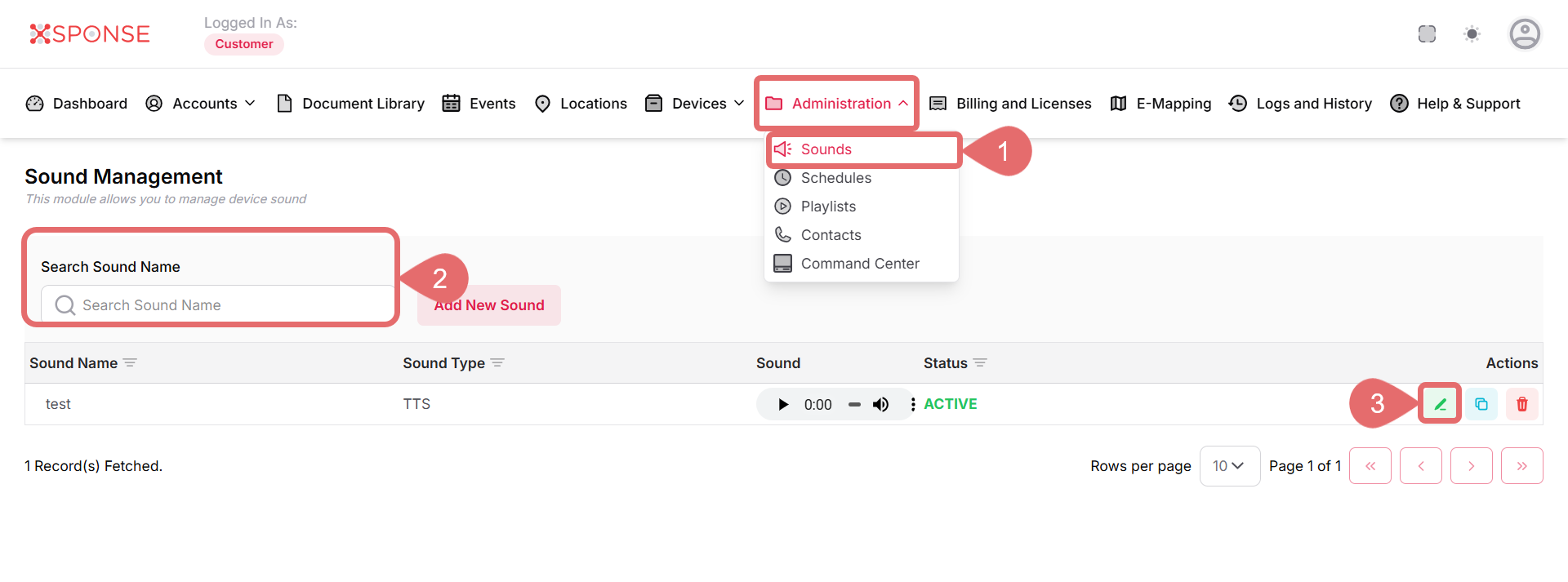
- Go to Administration > Sounds.
- Use the search bar to find the sound you want to update or locate it manually in the list.
- Click the Update icon in the Actions column.
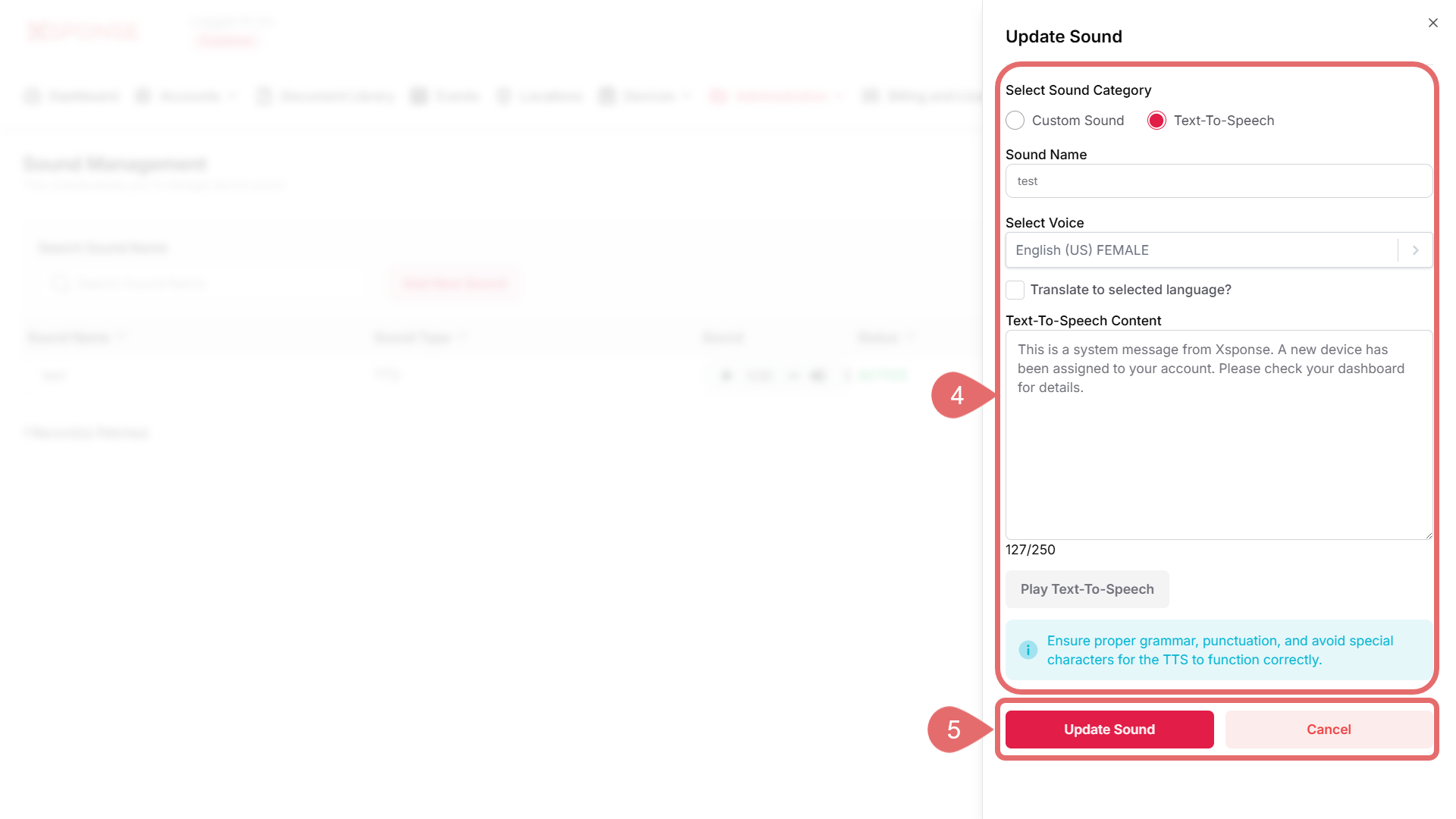
- Make the necessary changes:
- Sound Name: Update the name as needed.
- Category: Update the sound category if needed.
- Upload File (for Custom Sound): Click Browse to select a new audio file.
- For Text-To-Speech:
- Select Voice
- Translate to selected language
- Text-To-Speech Content Modify these fields if needed. For more details, see the Add a New Sound guide.
- Click Update Sound to apply the changes, or Cancel to exit without saving.
See Also
To complement your knowledge of this process, check the following pages: