Create a Layer on the E-Map
Use layers in E-Mapping to organize your devices and icons by category, such as safety, surveillance, or public address. This feature helps you visualize only what’s relevant at a given time.
To Create a Layer
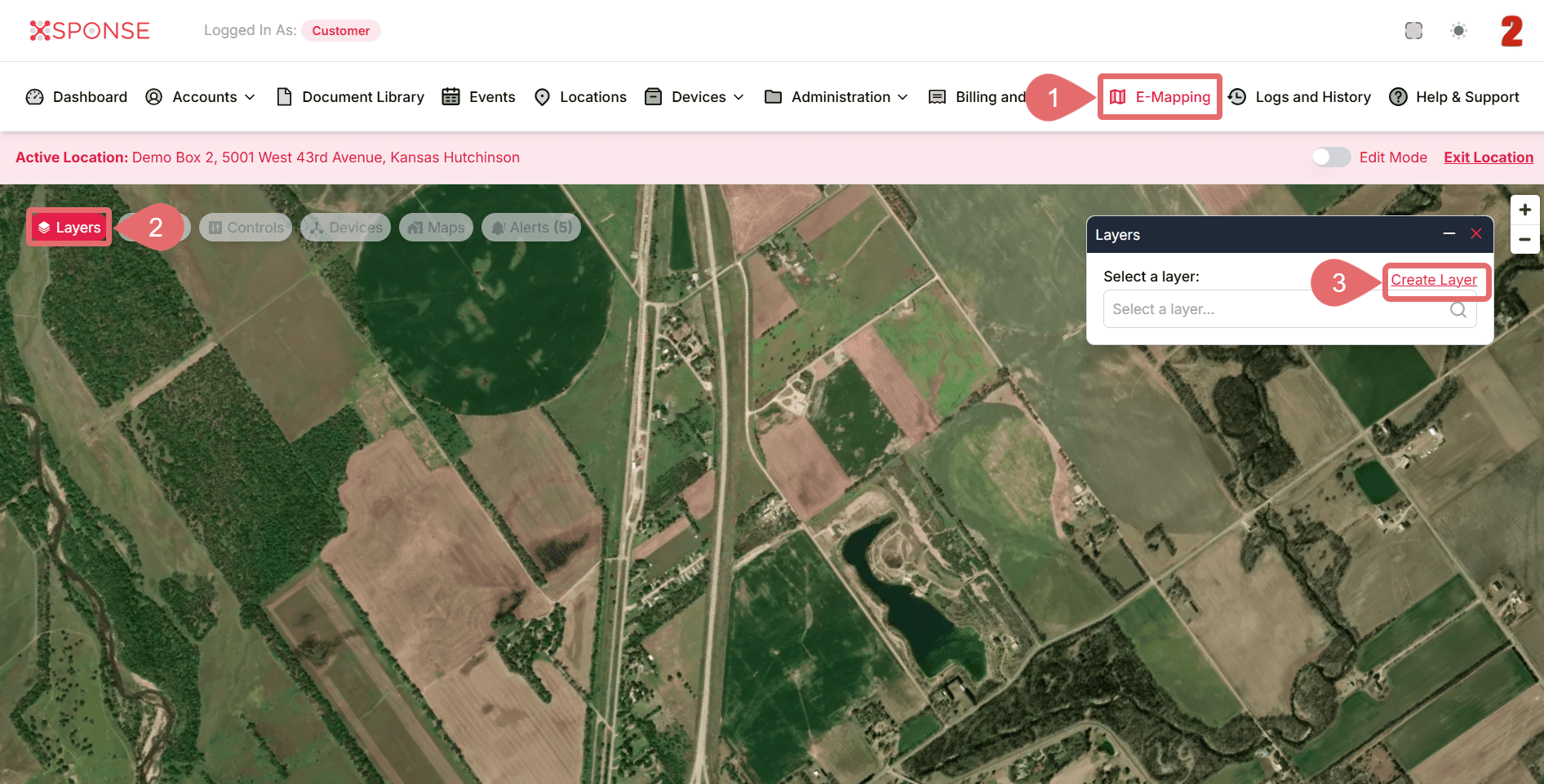
- Go to E-Mapping in the main menu.
- On the map view, click the Layers button.
- Click Create Layer.
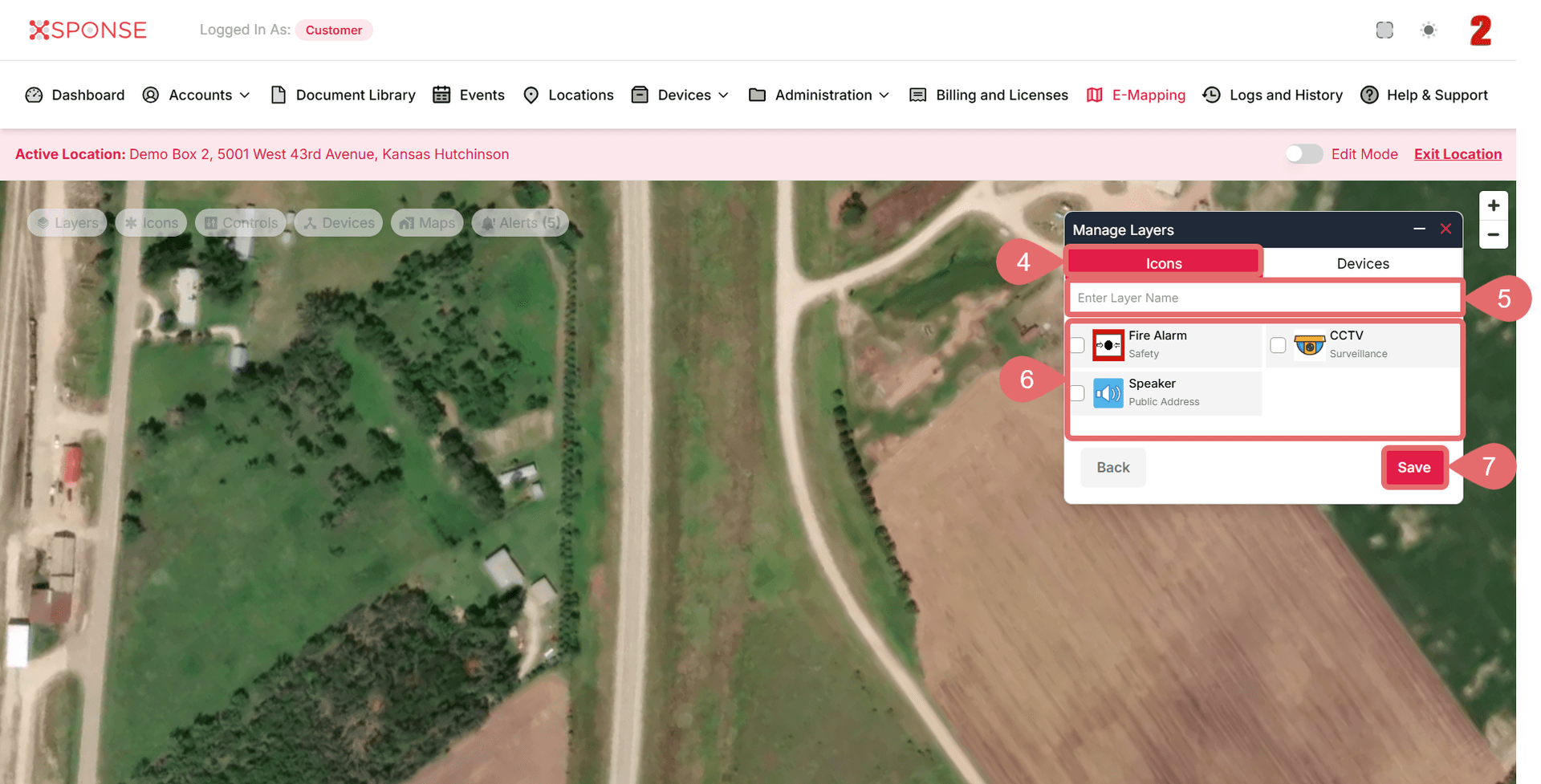
- In the Manage Layers window, choose the type of layer you want to create:
- Icons: for grouping map icons like fire alarms or speakers.
- Devices: for grouping actual tracking devices.
- Enter a namefor your new layer.
- Select the type of items to include:
- For icons: select Fire Alarm, CCTV, Speaker.
- For devices: select Fire Extinguisher, Security Camera, PA System.
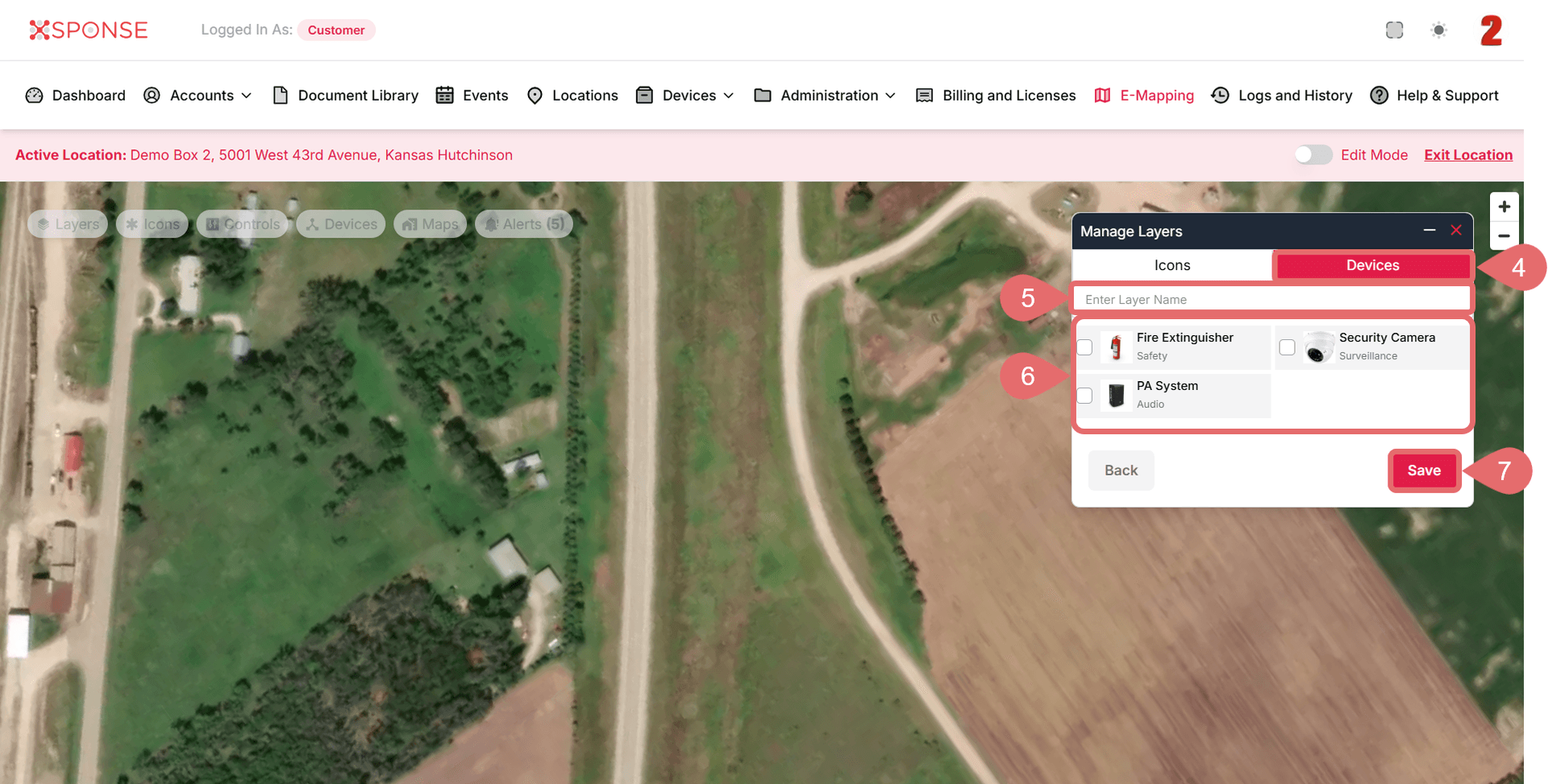
- Click Save.
Your layer will now be available to toggle on/off for quick access to specific device groups or categories.
Why Use Layers?
Layers help keep your map clear and organized by grouping similar items together. Create separate layers for Safety, Surveillance, and Communication for easier map management.
See Also
To complement your knowledge of this process, check the following pages: