Review and Analyze OTA Update Logs
Monitoring your OTA (Over-the-Air) update logs is essential to ensure that devices are properly receiving and completing firmware or software updates.
How to Review OTA Log Details
- Go to Logs & History in the main menu.
- Select the OTA Update Logs tab.
- Find the event row you want to review.
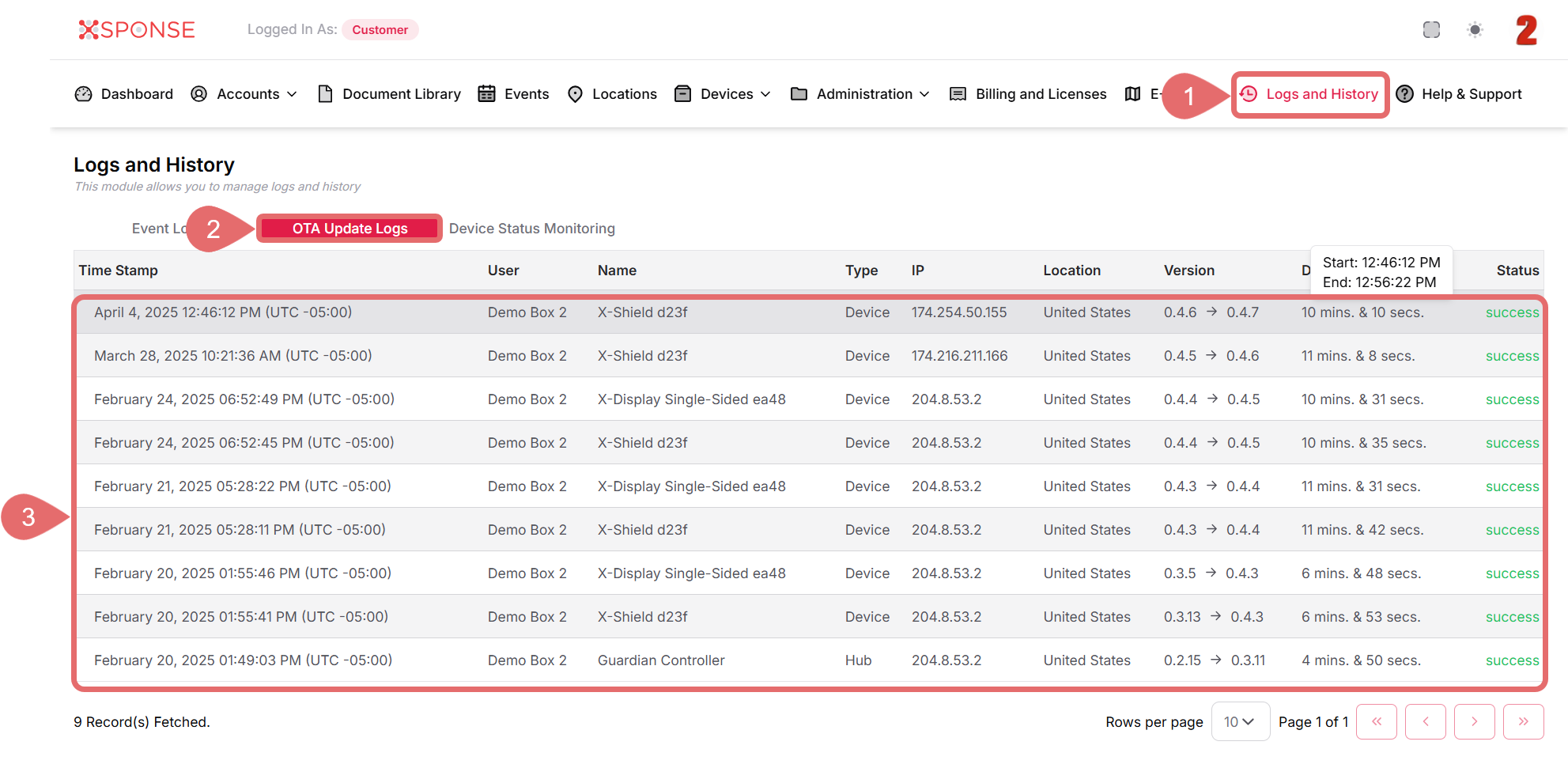
A detailed view of the event will appear, including:
- Time Stamp: The date when the update occurred.
- User: The user or system that performed the update (e.g., “Demo Box 2”).
- Name: The description of the event, typically “OTA Update.”
- Type: The type of device or process, such as “Device.”
- IP: The IP address of the device that performed the update.
- Location: The physical location of the device (if available).
- Version: The firmware version before and after the update (e.g., “0.4.4 → 0.4.5”).
- Duration: The total time the update took, such as “10 mins & 10 secs.”
- Start and End: The start and end time of the update (e.g., Start 12:46:12 p.m., End 12:56:22 p.m.).
- Status: The result of the process, usually “success” if completed correctly, or an error otherwise.
How to Interpret This Information
- Time Stamp, Start, and End confirm when the update process occurred.
- Duration helps validate that the update time was within expected limits, normal durations indicate proper completion.
- Status: A green “success” indicates that the update finished without issues.
- If the status is not “success” or the duration is unusually long, it may indicate a failure or issue that needs attention.
- The start and end times help confirm there were no unexpected delays or interruptions.
See Also
To complement your knowledge of this process, check the following pages: