View Logs and Event Information
Monitoring your system’s logs and history is crucial for troubleshooting and ensuring proper operation.
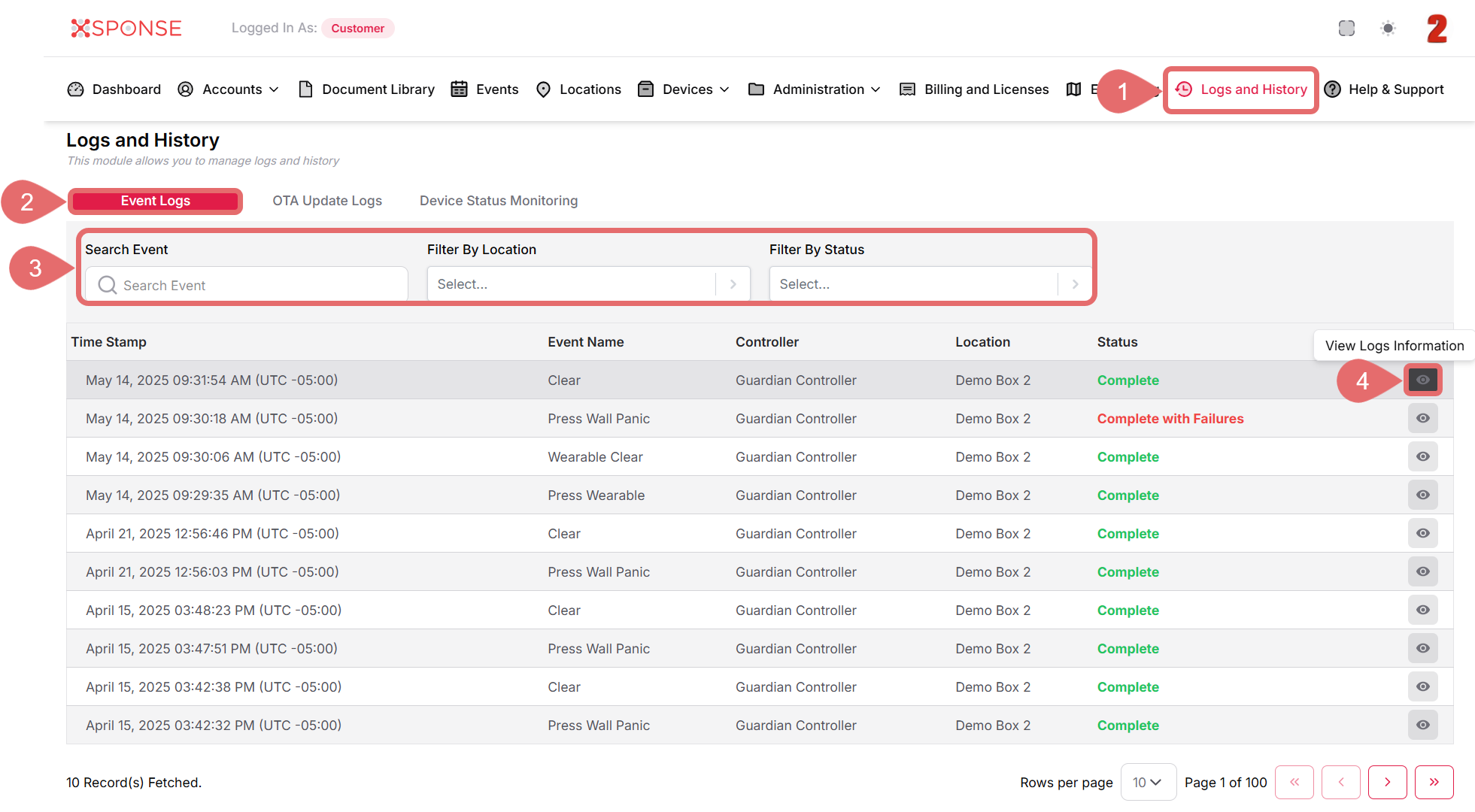
To View Log Entries and Event Details
- Go to Logs and History in the main menu.
- Select the Event Logs tab.
- Use the search bar or filters to locate the log you want to view.
- In the Actions column, click the View Logs Information icon to open Log Information.
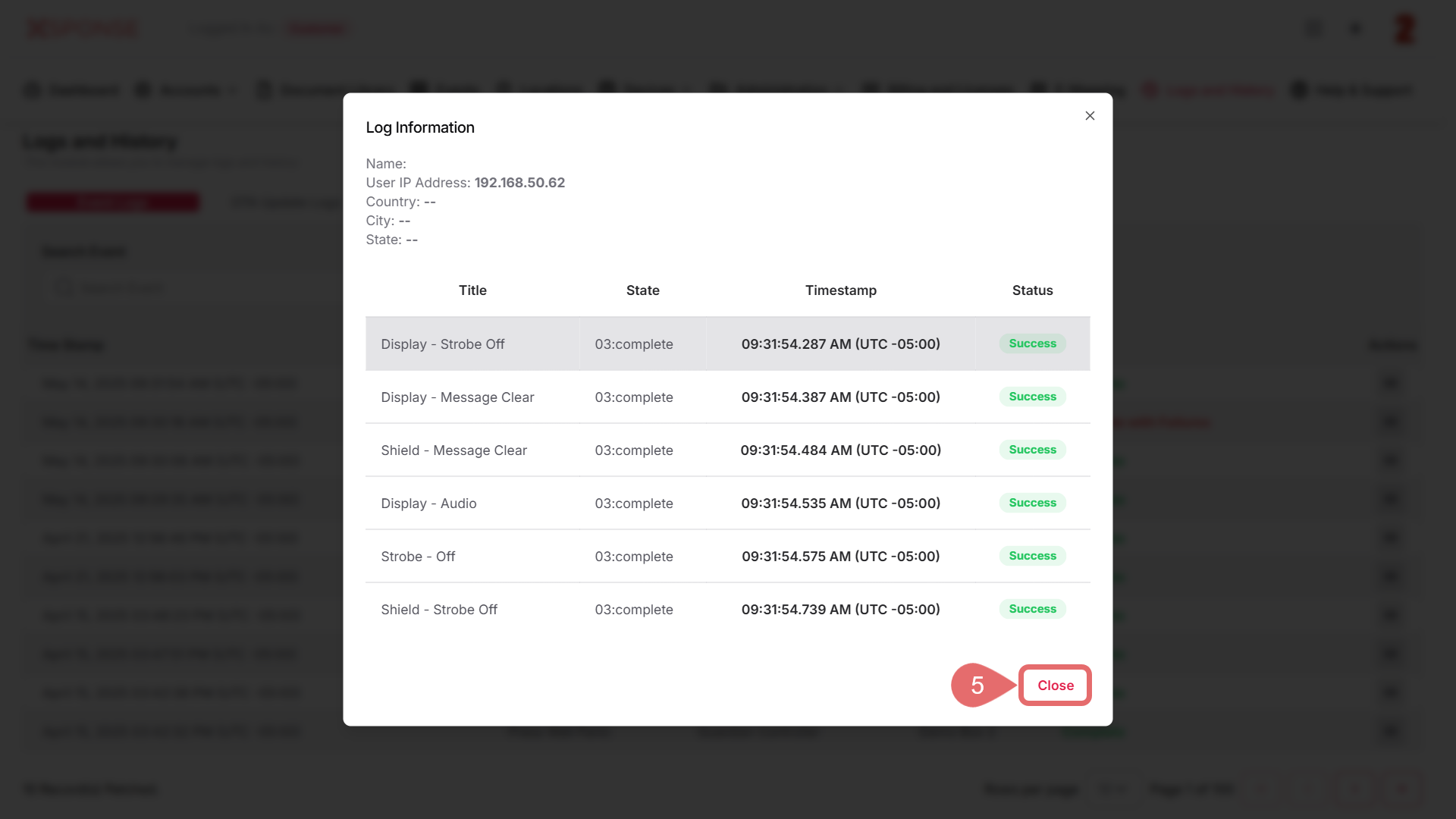
A window will open showing detailed information such as:
- Name: The event description (e.g., "Display - Message Clear").
- User IPm Address: IP address of the device that triggered the event.
- Country, City, State: Location data (if available).
- Title: The specific action performed.
- State: The status of the event (e.g., "03: complete").
- Timestamp: Exact date and time when the event occurred.
- Status: Indicates success or failure, shown in green with "Success" for successful actions.
How to Interpret This Information
- The Timestamp confirms exactly when the action was performed.
- Success indicates the event completed successfully without issues.
- If there’s an error or failure, the status will be diferente, alerting you to investigate further.
- Use these details to verify system activity or troubleshoot problems effectively.
- When finished reviewing, click Close to return to the logs list.
See Also
To complement your knowledge of this process, check the following pages: