View Device Information
In the Device module, you can quickly access detailed information about any device. This feature is useful when validating configuration, firmware version, or sensor capabilities.
To View Device Information
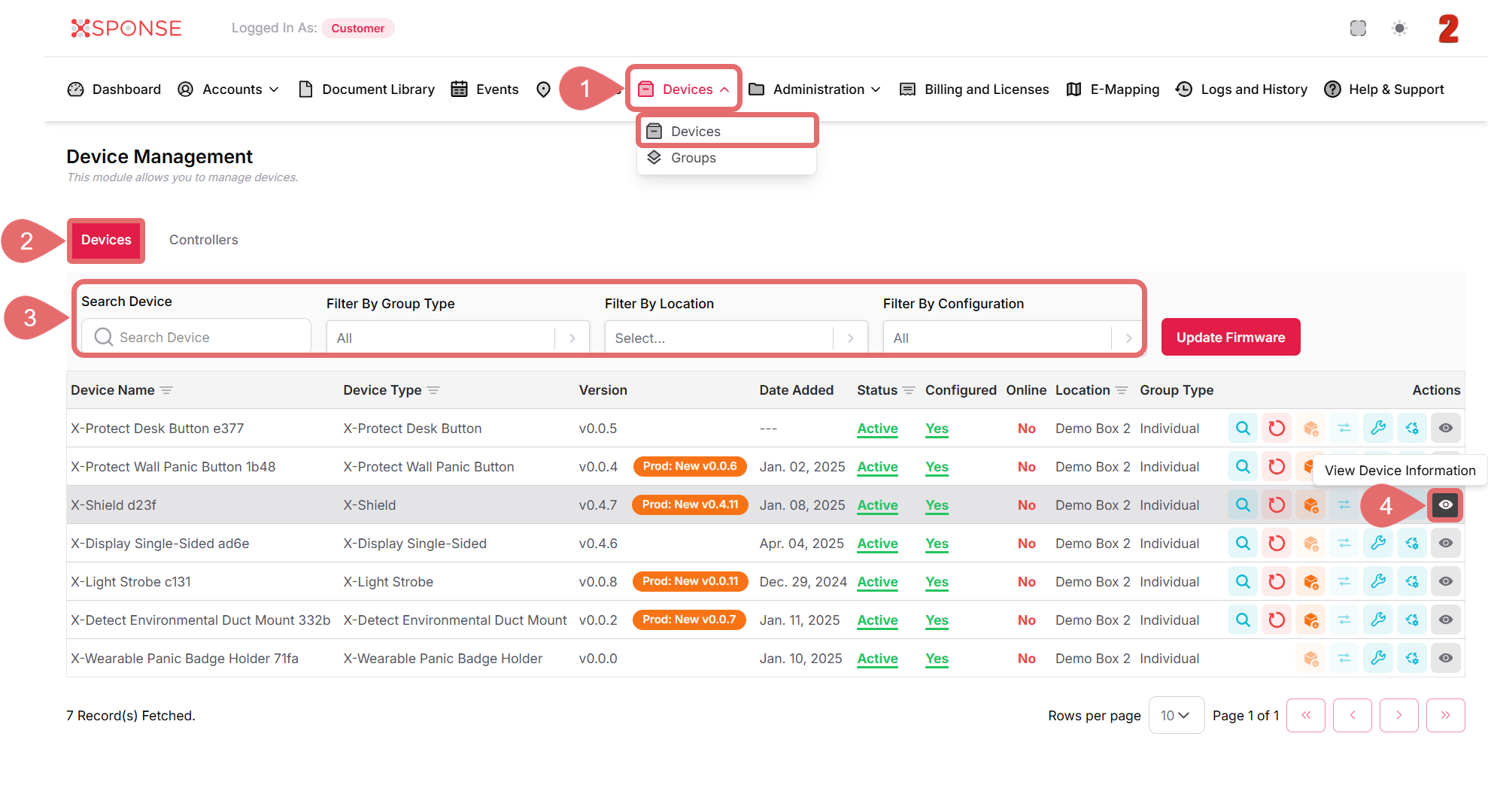
- Go to Devices > Devices in the main menu.
- Select the Devices tab.
- Use the search bar or filters to locate the device you want to inspect or you can also scroll through the list to locate it manually.
- In the Actions column, click the View Device Information icon.
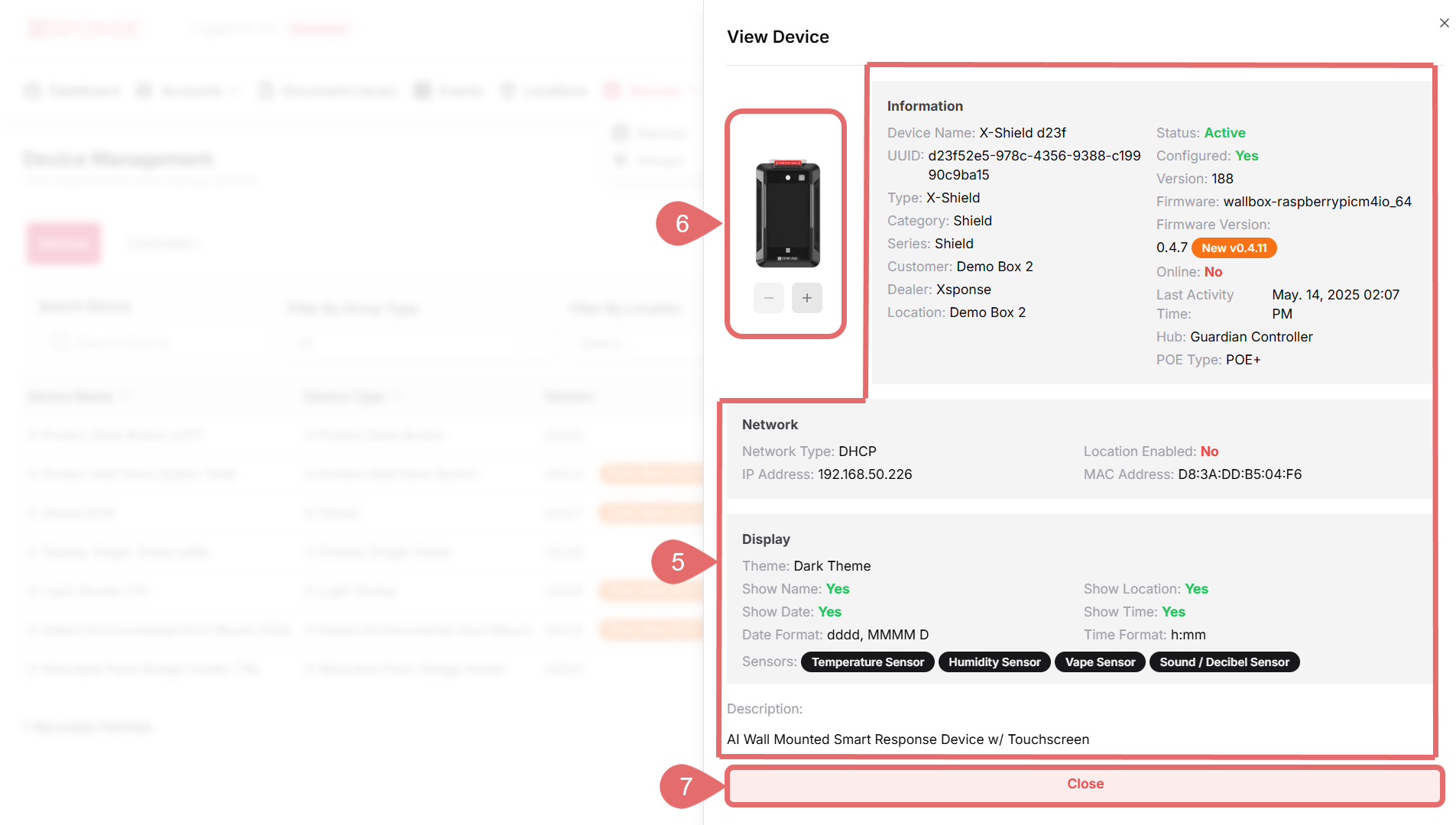
- The View Device Information panel displays the following details:
| Section | Field | Description |
|---|---|---|
| Information | Device Name | Display name of the device. |
| UUID | Unique identifier assigned to the device. | |
| Type | Hardware type (e.g., X-Shield). | |
| Category | Product category the device belongs to. | |
| Series | Series classification of the device. | |
| Customer | Customer associated with the device. | |
| Dealer | Dealer or partner managing the device. | |
| Location | Assigned physical or logical location. | |
| Status | Current operational status (e.g., Active). | |
| Configured | Indicates whether the device is configured. | |
| Version | Internal version or build number. | |
| Firmware | Hardware platform or chip type. | |
| Firmware Version | Version of firmware currently running. | |
| Online | Whether the device is currently online. | |
| Last Activity Time | Timestamp of last device communication. | |
| Hub | Controller the device is connected to. | |
| POE Type | Power over Ethernet mode used. | |
| Network | Network Type | DHCP or Static IP. |
| IP Address | Current IP address. | |
| Location Enabled | Whether the location setting is enabled. | |
| MAC Address | Unique hardware identifier for networking. | |
| Display | Theme | Active visual theme (e.g., Dark Theme). |
| Show Name | Whether the name is shown on screen. | |
| Show Date | Whether the date is displayed. | |
| Date Format | Display format for date. | |
| Show Location | Whether the location is shown. | |
| Show Time | Whether the time is displayed. | |
| Time Format | Display format for time. | |
| Sensors | List of active sensors (e.g., Temperature, Humidity). | |
| Other | Description | Custom description field. |
7. Click Close to exit the panel.
Why It Matters
Accessing detailed device information helps administrators verify connectivity, configuration state, and sensor setup—especially useful for remote diagnostics and compliance checks.
See Also
To complement your knowledge of this process, check the following pages: